Integrations
Updating block and exclusion lists
With OutboundSync, you can have any HubSpot list function as a blocklist or exclusion list, depending on which sales engagement platform you're using.
When to use this guide: Use this guide when configuring or validating CRM integration behavior.
With OutboundSync, you can have any HubSpot list function as a blocklist or exclusion list, depending on which sales engagement platform you’re using. You also know of these as Do Not Contact (DNC), opt out, or suppression lists.
These lists ensure that cold outreach is not sent to existing customers, competitors, open deals, or contacts on Do Not Contact lists.
What block lists cover: Synced block and exclusion lists suppress sequenced campaign enrollment and sends in the connected sales engagement platform (for example, Smartlead). They do not stop manual replies, inbox CCs, or reply-thread activity involving a blocked address or domain. For reply paths (not suppression), see Where to reply: HubSpot vs your sales engagement platform.
Read about the difference between block lists and exclusion lists here.
Creating your list in HubSpot
Section titled “Creating your list in HubSpot”Using lists in HubSpot means you can manage everything in one place, and push the right email addresses, email domains, and social profiles to the edge to prevent outreach.
If contacts have multiple emails in HubSpot, OutboundSync will block all associated emails in their contact record by default.
If you don’t have a blocklist built yet, let’s create one now. Otherwise, skip ahead.
Need inspiration? Build a HubSpot list with filters for the records you never want sequenced — for example:
- Active clients or customer status
- Open deal stage
- Subscription type, unsubscribed, or Do Not Contact
Popular list themes also include newsletter subscribers, open deals, and active customers.
Build a new list in HubSpot by going to Contacts > Lists.
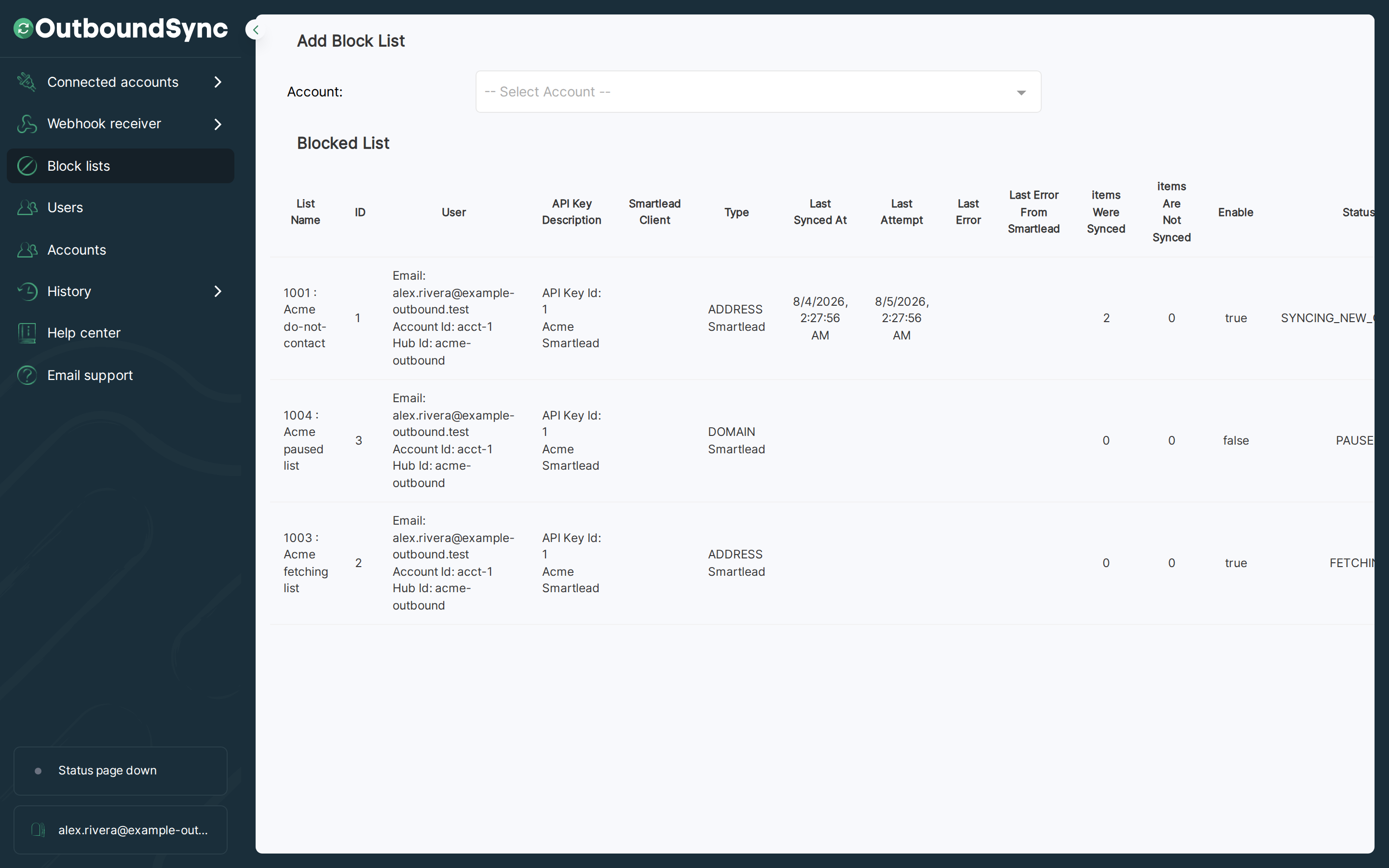
Once there, click the Create List button to start creating a list.

For this you can either create a list that is Contact-based or Company Based.
After creating a list with the desired criteria to add contacts or companies to an exclusion list, you can use it in OutboundSync for blocking.
Pulling your block list into OutboundSync
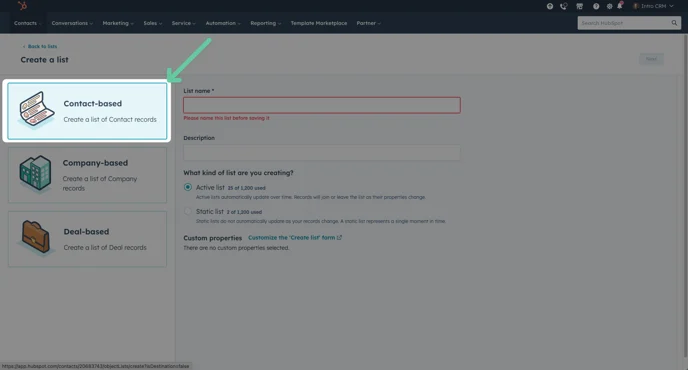
Section titled “Pulling your block list into OutboundSync”Now that you have created your list in your CRM, pull it into OutboundSync so new list memberships are pushed to your Sales Engagement Platform block list. For this, we’ll need to return to OutboundSync.
What syncs (and what doesn’t)
Section titled “What syncs (and what doesn’t)”Block list sync is additive. Contacts or companies that join your HubSpot list are pushed to the SEP. Contacts that leave the list are not removed from the SEP automatically. Deleting the sync in OutboundSync also does not clear the SEP — see How sync behaves (additive only) and the purge steps in the Block list maintenance guide. Prefer durable exclusion criteria on the HubSpot list; for time-based or volume rules, see Time-based and volume exclusions.
Remember that the user performing these actions needs to have sufficient permissions. If the user cannot access this data in the CRM, their credential cannot be used by OutboundSync to perform this action.
Navigate to OutboundSync block lists
Section titled “Navigate to OutboundSync block lists”Now, go to the OutboundSync app and go to the Block lists tab on the left.
Who can see block lists in OutboundSync
Section titled “Who can see block lists in OutboundSync”In multi-seat accounts, block and exclusion list configs in OutboundSync are scoped to the user profile that created them. Teammates on other profiles (non-Admin / non-Manager roles) may not see another user’s list in the UI. Admins and Managers can see all lists. Purchased seat count is on Manage billing and your subscription for the billing admin.
Designate one owner for the workspace list, or have an Admin create it. You only need one synced list for the workspace — you do not need a separate OutboundSync block list per teammate.
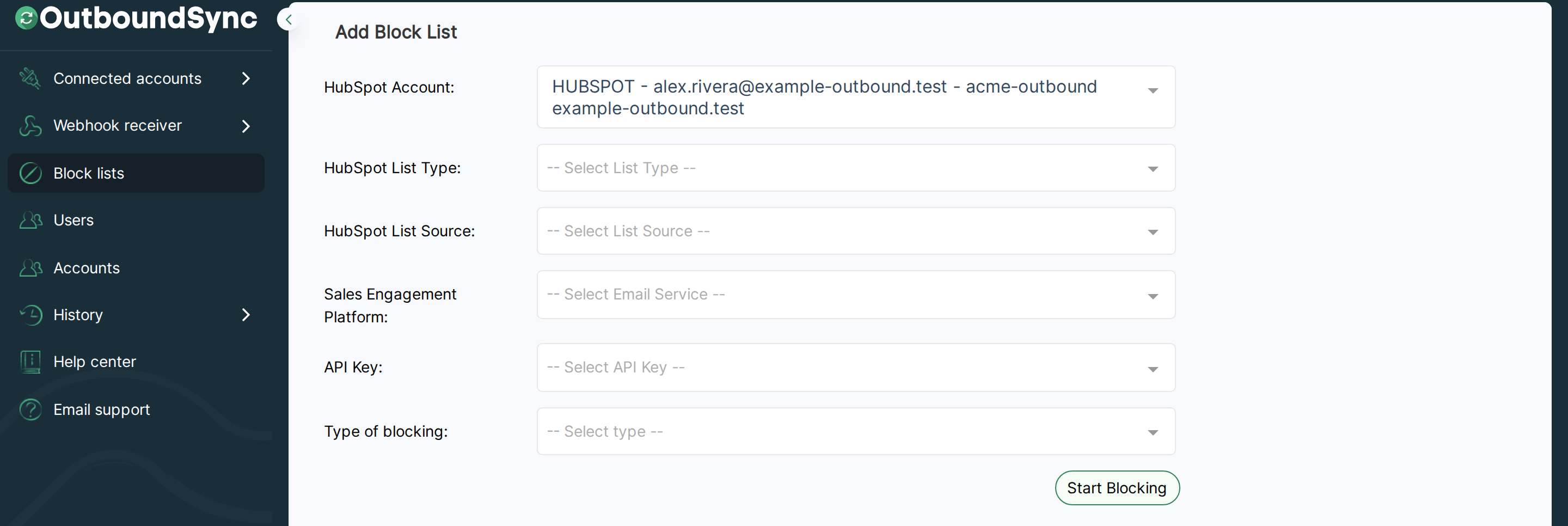
Select your list
Section titled “Select your list”Search for the block list that you created. It can be either a contact list or company list in HubSpot.
Select Sales Engagement Platform API Key
Section titled “Select Sales Engagement Platform API Key”Select the API key for the Sales Engagement Platform that you want to send to the block list. If you want to block this list on multiple platforms, create multiple lists.
Lemlist block lists need a Lemlist API key in Connected Accounts first (category-based filtered sync does not). When Lemlist is selected, choose Email or Social. Email pushes addresses and @-prefixed domains to Lemlist Unsubscribe; Social pushes LinkedIn profile URLs. See Lemlist.
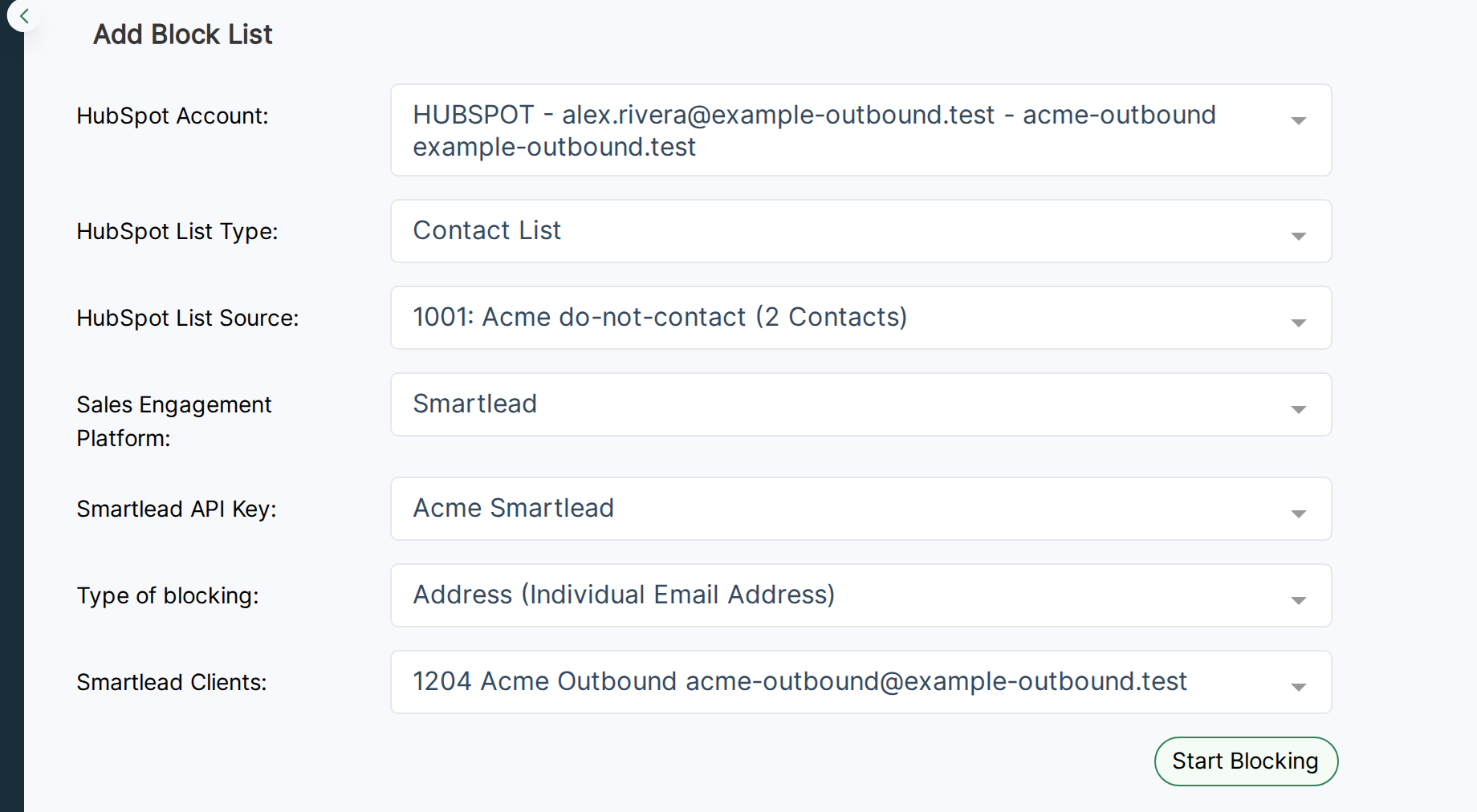
Select the type of blocking
Section titled “Select the type of blocking”OutboundSync supports two types of blocking. You can block by address or by domain with the Type of Blocking.
List type and blocking type are independent. The HubSpot list object (Contact-based vs Company-based) and the OutboundSync Type of Blocking (Address vs Domain) are separate choices. A common pairing is contact list → Address and company list → Domain, but it is not required. You can choose a contact list and Domain blocking — OutboundSync syncs the email domain(s) from contacts on that list instead of each address.
Address (individual email address or social profile)
Blocks each email associated with a contact in HubSpot individually and adds it to the blocklist in your Sales Engagement Platform.
Example: Blocking john@example.com doesn’t block all emails ending in @example; only John’s email is blocked.
HeyReach only supports individual social profiles on their exclusion lists. Contacts on your HubSpot source list need a social profile URL populated for HeyReach to exclude them. To understand more about how exclusion lists work in HeyReach, read How to add an Exclude List to my Campaign? and How to Exclude (leads) from list?
Lemlist Social uses the same Address-style profile URLs (pushed as Unsubscribe variables). It has no HeyReach leads list, and Domain blocking is not available on that channel.
Domain (every email address)
Blocks all emails associated with a contact’s domain and adds the domain to the blocklist in your Sales Engagement Platform. For Lemlist, Domain blocking applies on the Email channel only (@-prefixed domains on Settings → Unsubscribe).
If a contact had multiple email addresses, every domain would be blocked.
Exception: Leading email providers (e.g., Gmail, Outlook) won’t be blocked as they are common. View unblockable domains list here.
If you want to block these domains manually in your Sales Engagement Platform, download this CSV and import it directly. This would block you from emailing personal email addresses.
Select clients (Optional)
Section titled “Select clients (Optional)”If you are using a Sales Engagement Platform that has specific client IDs like Smartlead, this is the step where you will select that Client ID to match the blocklist to that client. Others use dedicated workspaces where this will not be relevant.
Start blocking
Section titled “Start blocking”Next, click Start Blocking (6). You will see your blocklist appear in the table.
This takes time to execute. The larger your list, the more time it can take. Refresh your browser or come back later to see OutboundSync’s progress updating your blocklist.