Getting Started
Manage billing and your subscription
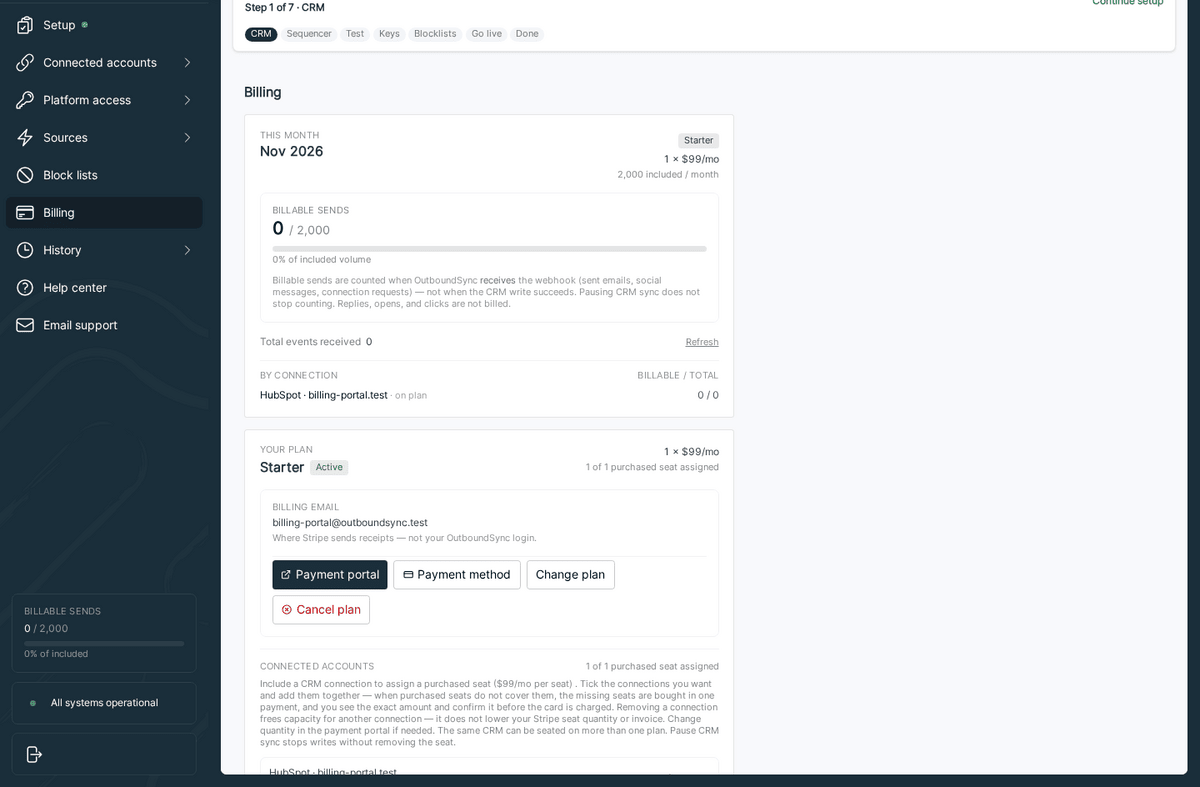
Manage your OutboundSync subscription and payment method from Billing in the app. Billing admins open Stripe Customer Portal from there.
When to use this guide: Use this guide when you need to update a card on file, change your plan or seat count, cancel at period end, or review invoices for a paid OutboundSync account.
OutboundSync bills paid accounts through Stripe. Self-serve subscription changes happen in the app under Billing, which opens Stripe Customer Portal flows. When you finish in Stripe, use the link back to OutboundSync to return to Billing.
Open Billing
Section titled “Open Billing”Every OutboundSync login sees Billing in the left navigation. It opens Billing in the app.
Only the billing admin sees the billing account on that page. When you are the billing admin, Billing shows:
- Your plan — current plan, subscription status, purchased seats, and price summary
- Connected accounts — which CRM connections are assigned a seat
Who can see Billing
Section titled “Who can see Billing”| What you see | Who |
|---|---|
| Billing in the left nav | Every login |
| Billing account — plan, seats, connected accounts, and Stripe action buttons | Billing admin only |
Billing is in the nav for everyone. Only the login that is your organization’s billing admin sees the billing account and its buttons on the Billing page.
Complimentary accounts (not billed through Stripe) do not show a billing account or Stripe buttons on this page. For those accounts, contact support for subscription questions.
Update your card
Section titled “Update your card”When your subscription is active, trialing, or past due, the billing admin sees Payment method.
- On Billing, click Payment method.
- Stripe opens its Update payment method page.
- Add or replace the card, then return to OutboundSync Billing.
When the subscription is past due, OutboundSync highlights Update payment method (via Payment method) so you can fix failed charges quickly.
You can also open Payment portal (see below) and use Add payment method or update the default card there.
Change or cancel your plan
Section titled “Change or cancel your plan”These actions are available to the billing admin when the subscription is active, trialing, or past due.
Change plan or seats
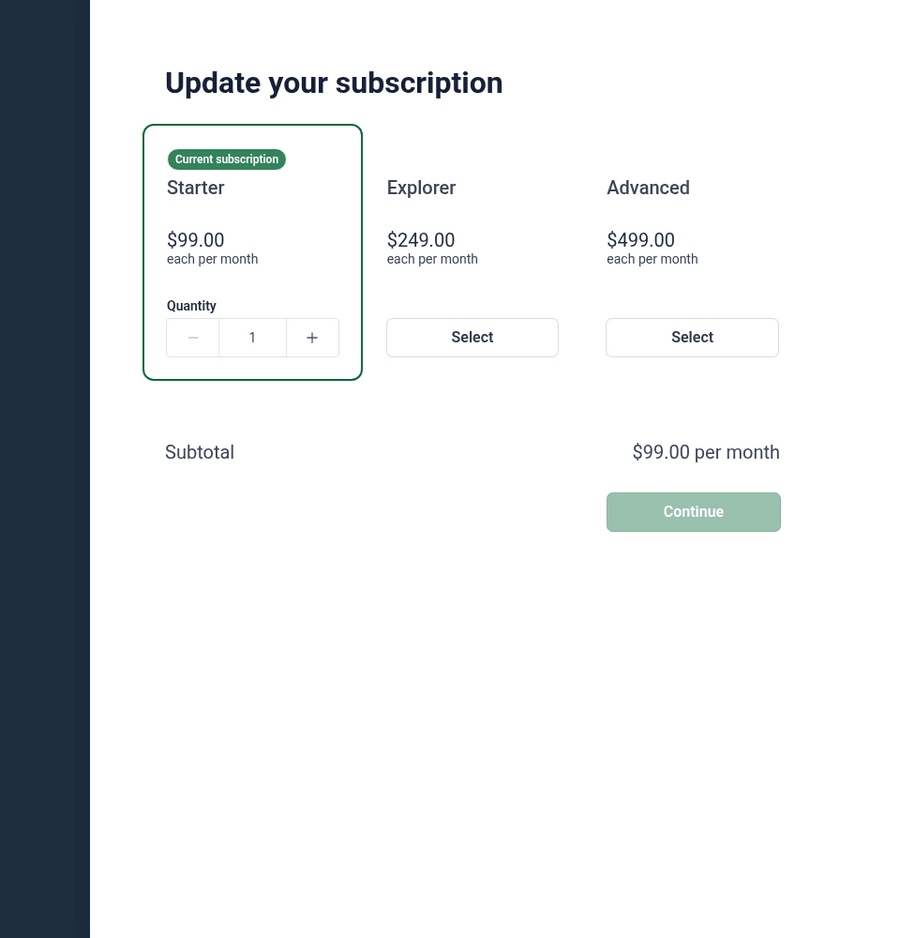
Section titled “Change plan or seats”- On Billing, click Change plan.
- Stripe opens Update your subscription with the plans available to your account.
- Select a plan and adjust quantity (seats) if shown.
- Continue through Stripe’s confirmation, then return to Billing.
Plan tiers and list prices are on Pricing. Volume and seat rules are in Choose an OutboundSync volume plan.
Cancel plan
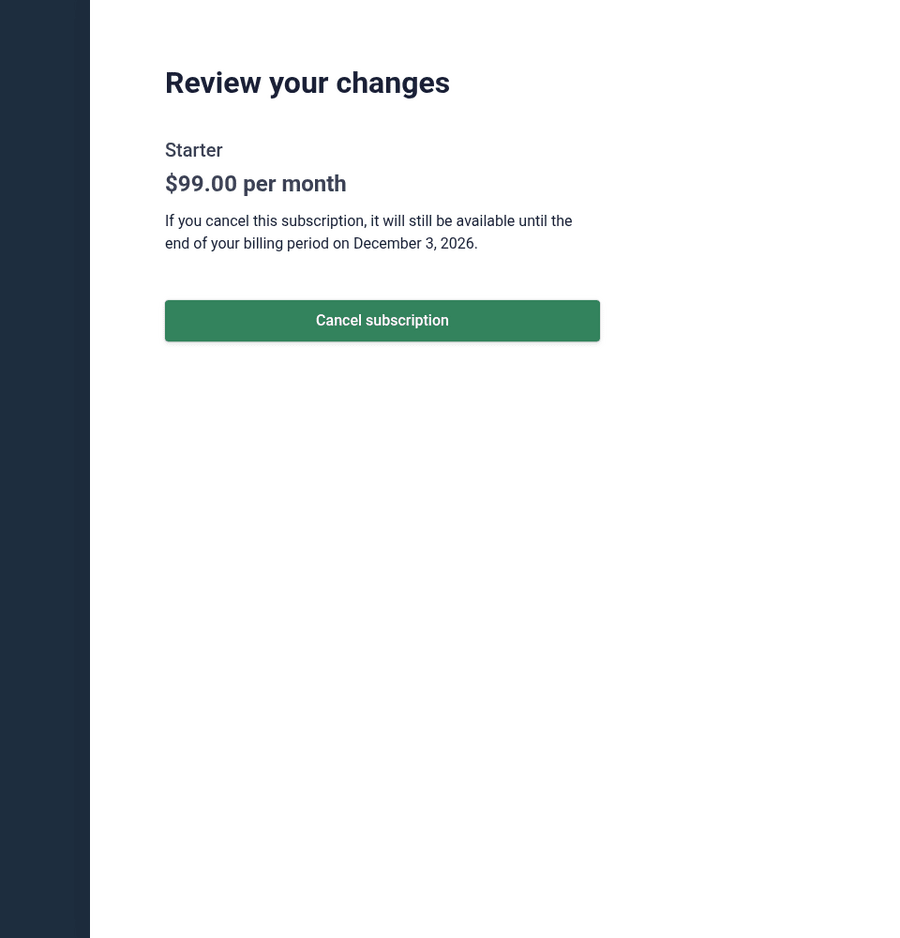
Section titled “Cancel plan”- On Billing, click Cancel plan (or cancel from Payment portal).
- Stripe shows a Review your changes screen.
- Confirm cancellation.
Cancellation takes effect at the end of the current billing period. You keep access until that date.
Payment portal
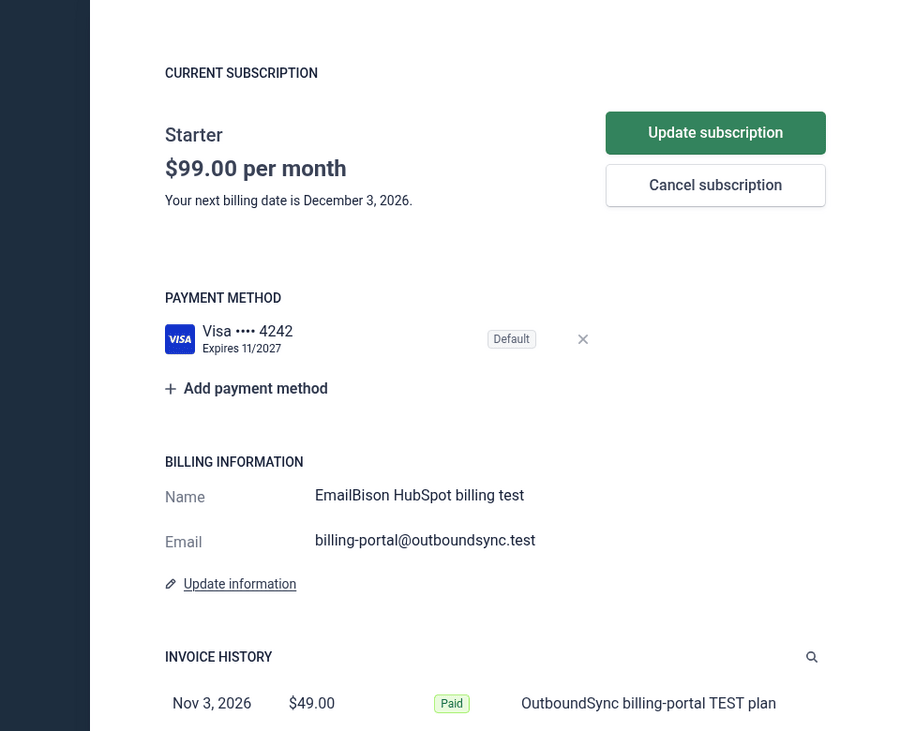
Section titled “Payment portal”Payment portal is always available to the billing admin. It opens the Stripe Customer Portal home for your OutboundSync subscription.
From there you can:
- View the current subscription and next billing date
- Update or cancel the subscription
- Manage payment methods
- Update billing contact details
- Review paid invoices
Each Stripe page includes the link back to OutboundSync when you are done.
Seats and connected accounts
Section titled “Seats and connected accounts”Purchased seats control how many CRM connections can run on your plan. When you are the billing admin, Billing lists Connected accounts that currently use a seat. Adding or removing CRM connections may require changing seat quantity — use Change plan in Stripe if you need more seats.
When to contact support
Section titled “When to contact support”Use self-serve Billing for cards, plan changes, and cancellation at period end. Email support@outboundsync.com or see Support when:
- You are not the billing admin and need billing ownership transferred
- You are on a complimentary account
- Stripe or Billing shows an error you cannot resolve
Teammate access (separate from billing) is covered in How teammates get OutboundSync account access.