Integrations
How to fetch lead categories or statuses
Fetch Smartlead Lead Category names and IDs through OutboundSync to build HubSpot or Salesforce workflows and filters based on lead status and category values.
When to use this guide: Use this guide when configuring or validating engagement platform integration behavior.
Lead categories (sometimes labeled statuses) are the reply classifications your engagement platform assigns — for example Interested, Not Interested, or a custom category your team defined. OutboundSync syncs those values into HubSpot and Salesforce so you can branch workflows, filter reports, and route follow-up without reading every reply by hand.
Use the Lead Category ID (a stable value) in automation, not the display name. Names can change; IDs stay consistent across payloads and CRM fields. The ID is a number in Smartlead and a stable text slug in some other platforms (for example Instantly and EmailBison) — either way, match on the ID, not the name.
The same OutboundSync External API keys → Lead Categories → View path works for Smartlead and for other self-serve email platforms that expose categories in the Connected Accounts table (including Instantly and EmailBison). Platform-specific auth steps live in each connector’s API key guide.
What you get from OutboundSync
Section titled “What you get from OutboundSync”For each connected engagement account, OutboundSync lists:
- Standard categories — defaults from the engagement platform (for example Interested).
- Custom categories — labels your team created in that platform.
Each row includes a human-readable name and a stable Lead Category ID (numeric in Smartlead; a text slug in some other platforms). Copy the ID into HubSpot workflow branches, Salesforce Flow criteria, or report filters that match OutboundSync-synced category fields.
HubSpot vs Salesforce workflows
Section titled “HubSpot vs Salesforce workflows”| CRM | Typical use |
|---|---|
| HubSpot | Branch a workflow on the synced lead-category property (often by ID). See Routing replies with a workflow. |
| Salesforce | Filter reports, list views, or Flow entry conditions on the synced category field using the same ID values. |
Name-only matching is fragile if someone renames a category in the engagement platform. Prefer ID equality in both CRMs.
Log in to OutboundSync
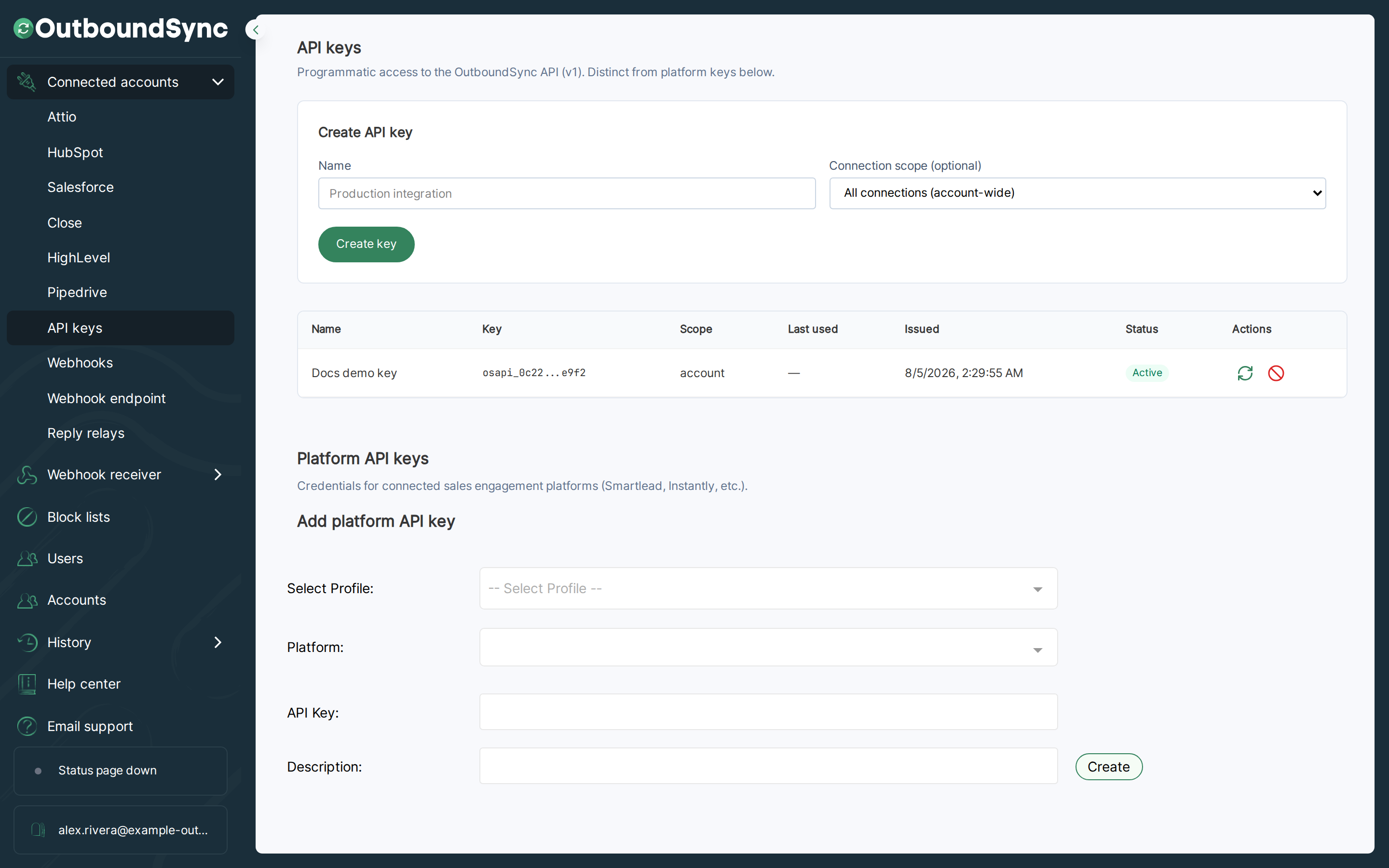
Section titled “Log in to OutboundSync”First, log in to OutboundSync. Under Connected Accounts, click External API keys. Screenshots below still show the previous stacked API keys layout.
Find and click the View button
Section titled “Find and click the View button”Then, find the Lead Categories column and the View button for the engagement account you care about.
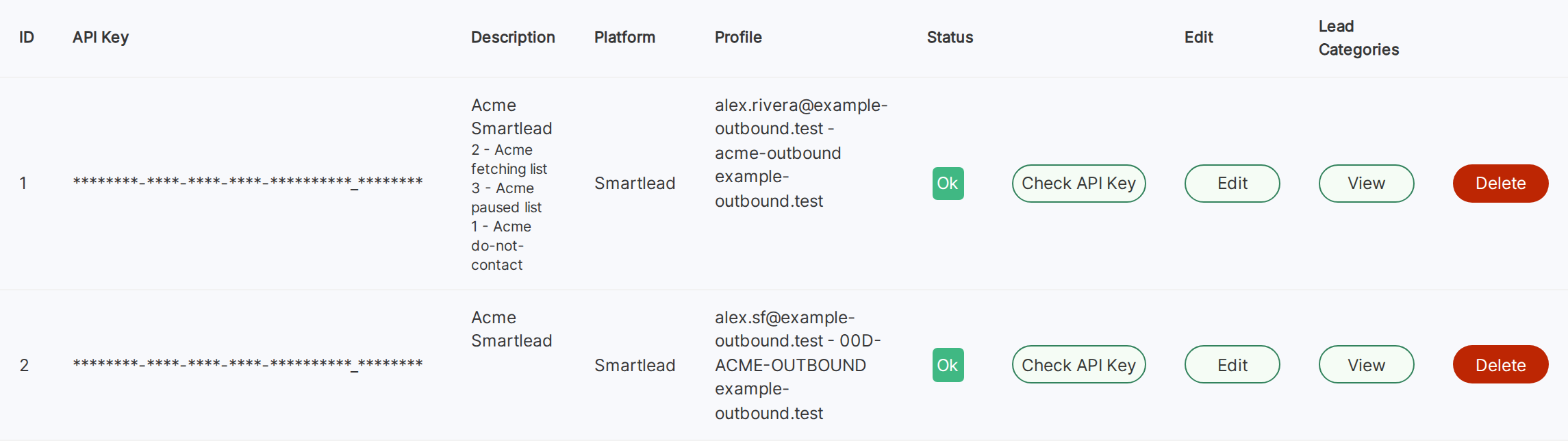
Finally, click the View button.
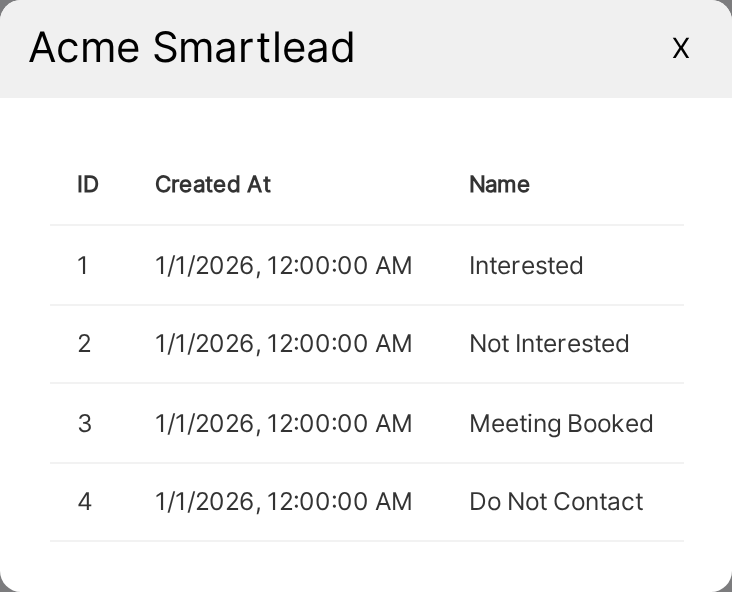
The pop-up lists both standard and custom lead categories you can use in workflows.
Example
Section titled “Example”In this case, the Lead Category of Interested has a Lead Category ID of 1.
If you were building a workflow, you would branch on Lead Category ID and select the value 1 for interested replies.