API (Beta)
Creating API keys
Create and manage OutboundSync API keys for programmatic access to the OutboundSync API v1.
When to use this guide: Use this guide when you need to create an OutboundSync API key for a script, internal tool, integration platform, or AI-assisted workflow.
OutboundSync API keys start with osapi_ and authenticate requests to the OutboundSync API. The same Bearer key authenticates the hosted MCP server (https://mcp.outboundsync.com/mcp). They are not the same as external API keys for Smartlead, Instantly, EmailBison, HeyReach, or other outbound tools (Connected Accounts → External API keys).
Prerequisites
Section titled “Prerequisites”Before a key can make successful API requests:
- An administrator must enable API access for at least one CRM connection.
- The connection must remain active and not deleted.
- The API key must be active and scoped to a connection the account can access.
If API access is not enabled for any connection, a valid key returns 403 API access is not enabled for this account.
Webhooks (Sync Monitoring)
Section titled “Webhooks (Sync Monitoring)”To call /api/v1/webhooks or /api/v1/events, an administrator must also enable Webhooks for the account (canUseWebhooks, same pattern as API access). Without it, those routes return 403. How-to: OutboundSync webhooks.
Webhook management (/api/v1/webhooks*, including GETs) requires an account-wide key. Connection-scoped keys are rejected on that surface. Mutations (create, update, delete, rotate, test, replay) also require the write scope — see Scopes below.
Create an API key
Section titled “Create an API key”- Log in to OutboundSync.
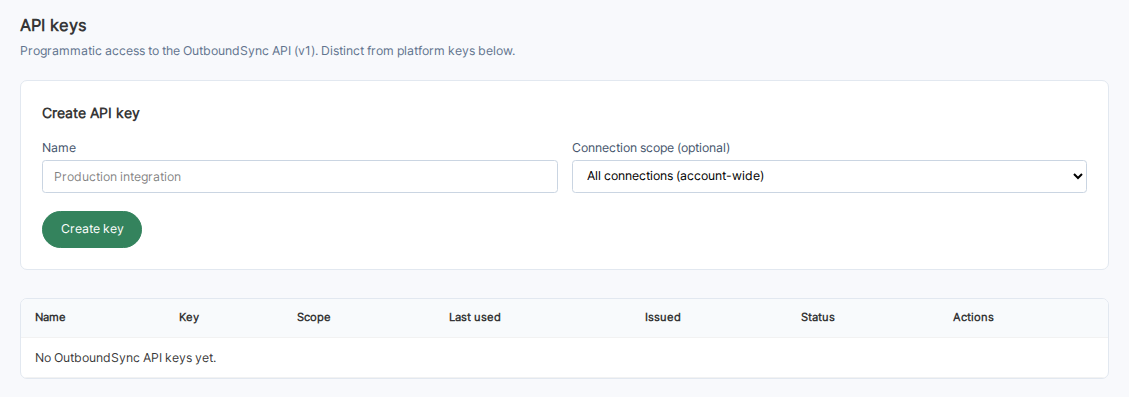
- Go to Platform access → API keys.
- In the API keys section, enter a key name such as
Production integration. - Choose a Connection scope:
- All connections (account-wide) lets the key read all API-enabled CRM connections for your account.
- A single connection limits the key to one CRM connection.
- Click Create key.
- Copy the key immediately. OutboundSync only shows the plaintext key once.
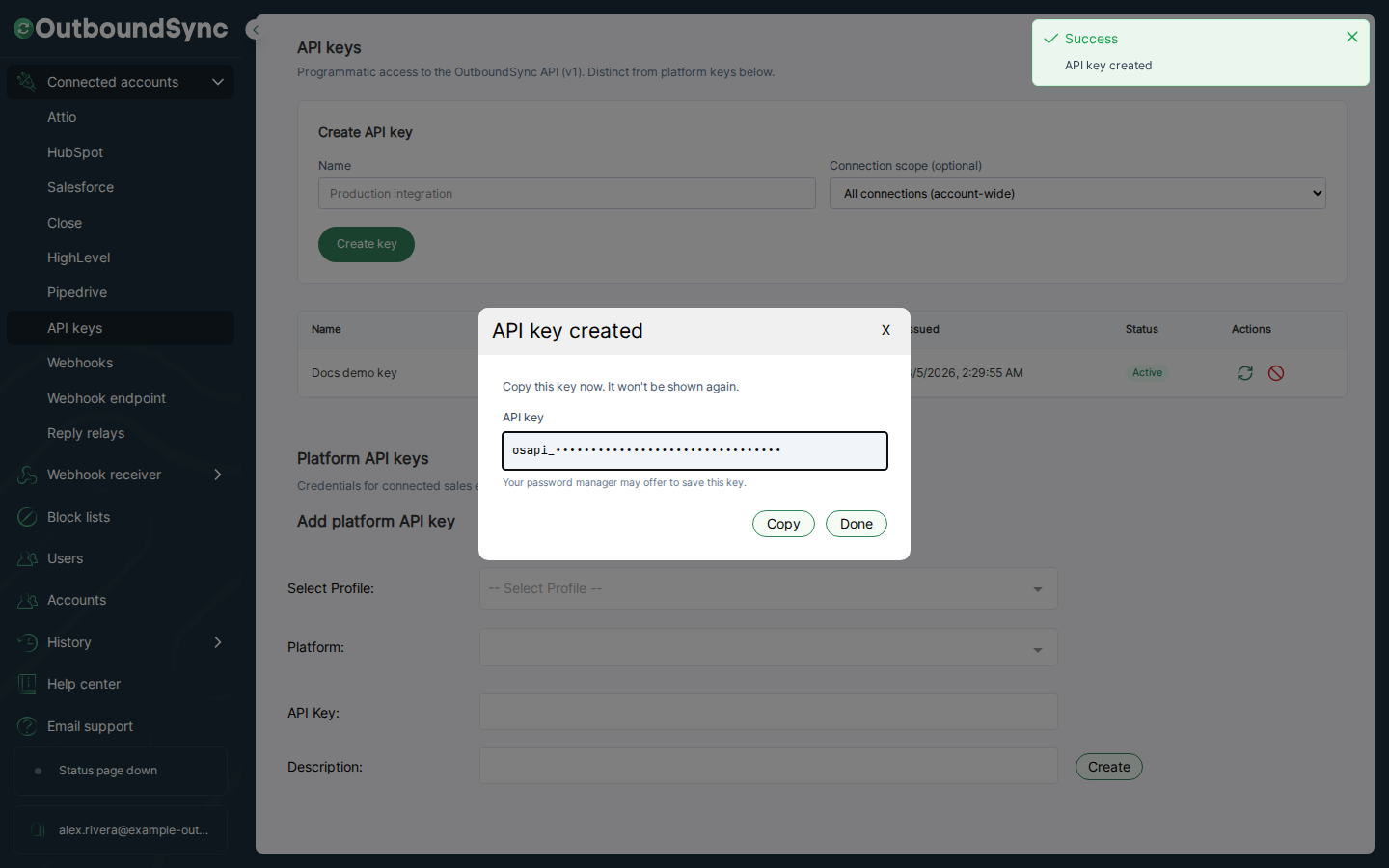
Store the key in a secret manager or environment variable. Do not paste it into source code, chat logs, spreadsheets, or issue trackers.
Test the key
Section titled “Test the key”Use GET /api/v1/me to confirm the key works.
curl 'https://app.outboundsync.com/api/v1/me' \
  -X GET \
  -H 'Authorization: Bearer osapi_<your-secret>'
A successful response includes the authenticated account, key metadata, and the CRM connections that key can access.
Rotate a key
Section titled “Rotate a key”Rotate a key when it may have been exposed or when your security process requires regular credential rotation.
- Go to Platform access → API keys.
- Find the key.
- Click Rotate.
- Copy the new key immediately.
- Update every script, tool, or automation that used the old key.
The previous key stops working as soon as rotation succeeds.
Revoke or archive a key
Section titled “Revoke or archive a key”Use Revoke when a key should stop working. Revoked keys remain visible in the table until you archive them. Use Archive only after you no longer need the revoked key in the admin view.
Scope keys narrowly
Section titled “Scope keys narrowly”Use connection-scoped keys when an integration only needs one CRM connection. Use account-wide keys when the integration needs to discover every API-enabled connection on the account, or when you manage Webhooks.
Scopes
Section titled “Scopes”Every OutboundSync API key carries a scopes[] list:
| Scope | Meaning |
|---|---|
read |
Default. Enough for introspection GETs and reading the event log. |
write |
Required for webhook mutations (POST / PATCH / DELETE on /api/v1/webhooks*) and POST /api/v1/syncs/:id/retry. |
Keys created in the admin app currently receive read only. To retry syncs or manage Webhooks programmatically, ask OutboundSync support to issue a key with write. Connection-scoped keys can call sync retry; do not reuse a connection-scoped key for webhook management — those routes return 403 even for GETs.
Try it from the docs
Section titled “Try it from the docs”After you copy a key, open Try the API, paste the key, and send GET /api/v1/me. You should see your key metadata and accessible CRM connections without leaving OutboundSync docs.
Ask an AI coding assistant
Section titled “Ask an AI coding assistant”After creating a key, paste this prompt into your coding assistant:
Use my OutboundSync API key from the OUTBOUNDSYNC_API_KEY environment variable.Call GET https://app.outboundsync.com/api/v1/me with Bearer authentication.If the request succeeds, list the key name, scope, and CRM connections. If it fails, explain whether the likely issue is a missing key, invalid key, disabled API access, or rate limiting.Related guides
Section titled “Related guides”- Try the API
- API v1 reference
- Errors and rate limits
- Connect your Smartlead API key — external API key setup, not OutboundSync API access