Troubleshooting
Re-authorize your HubSpot account
If you’re seeing HubSpot permission or authentication errors while using OutboundSync, it may be necessary to re-authorize your HubSpot connection.
When to use this guide: Use this guide when expected sync behavior is missing, delayed, or incorrect.
If you’re seeing HubSpot permission or authentication errors while using OutboundSync, it may be necessary to re-authorize your HubSpot connection.
This process refreshes your integration permissions (scopes) and resolves issues caused by expired tokens or missing access.
Common errors this fixes
Section titled “Common errors this fixes”You may need to re-authorize if you see errors such as:
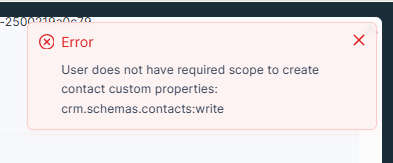
User does not have required scope to create contact custom properties
Missing or invalid refresh token (seen in webhook history)
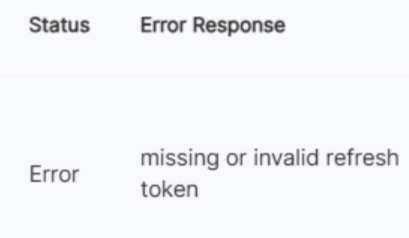
These errors typically occur when HubSpot permissions change, tokens expire, or the integration needs to request updated scopes.
Confirm your permissions
Section titled “Confirm your permissions”First, you need to check that your HubSpot account has sufficient permissions.
OutboundSync requires the user to have Super Admin access to their HubSpot portal in order to authorize the integration successfully.
To verify this, go to HubSpot Settings → Users & Teams, select the connected user, and confirm Super Admin permissions are enabled.
Without Super Admin access, HubSpot may block required scopes and prevent OutboundSync from creating or updating properties even after reauthorization.
Quick fix: Re-authorize connection
Section titled “Quick fix: Re-authorize connection”Re-authorize by signing in again. Do not delete the HubSpot profile in OutboundSync — that is only for removing a connection, and Delete is blocked while webhooks or block lists still use the profile.
- Log in to OutboundSync
- Navigate to Connected Accounts → HubSpot
- Click Sign in with HubSpot and sign in to the same portal
Your OutboundSync login email must match the HubSpot user who completes authorization.
This prompts HubSpot to request the required permissions again and refreshes tokens on the existing profile. Existing webhooks and block lists stay attached.
Once reconnected, retry the action that previously failed (such as updating properties or syncing an activity).
If the connection broke with an authorization error, OutboundSync paused CRM sync for that connection until now. Re-authorizing resumes syncing for new events. Events logged while sync was paused show Error with sync_circuit_open and aren’t replayed automatically. See How to reprocess errored webhook logs.
Thorough fix: Full reinstall
Section titled “Thorough fix: Full reinstall”If re-authorizing inside OutboundSync does not resolve the issue, you may need to uninstall and reinstall the HubSpot app connection.
- Log in to HubSpot
- Go to Settings
- Navigate to Integrations → Connected Apps
- Find OutboundSync
- Click Uninstall
Then return to OutboundSync and sign in again:
- In OutboundSync , go to Connected Accounts → HubSpot
- Click Sign in with HubSpot again and select your portal
This resets HubSpot permissions and refresh tokens from scratch while keeping your OutboundSync profile and its webhooks. Do not delete the OutboundSync HubSpot profile unless you intend to remove the connection entirely and no webhooks or block lists still use it.
If everything above looks correct and the issue persists, please reach out to the OutboundSync support team at support@outboundsync.com with a screenshot of the error, your OutboundSync accounts email address, and any relevant error details. We’re happy to help get everything working again.