Troubleshooting
Re-authorize your Salesforce account
Reconnect Salesforce in OutboundSync with Connect or Reconnect on the existing profile, confirm Connected status, and keep your sources linked.
When to use this guide: Use this guide when expected sync behavior is missing, delayed, or incorrect — especially after disconnecting Salesforce or seeing a token error.
If Salesforce sync fails with a token error, or you need to reconnect after a disconnect, use Connect or Reconnect on your existing profile. Do not delete the connection and create a new one — that path is blocked when webhooks or block lists still reference the profile, and it is not required for a normal reconnect.
Common errors this fixes
Section titled “Common errors this fixes”You may need to reconnect if OutboundSync reports:
Is not valid user tokens.
This error means the Salesforce connection no longer has valid tokens — often after a disconnect or an incomplete reconnect.
For BAD_REFRESH_TOKEN errors, see Getting a Bad Refresh Token error.
Reconnect your Salesforce account
Section titled “Reconnect your Salesforce account”- Log in to OutboundSync.
- Go to Connected accounts → Salesforce.
- Find your existing Salesforce profile and check the Status column (Connected or Not connected).
- Click Connect or Reconnect — use whichever label the row shows — and complete the Salesforce sign-in flow. Select Allow on the permissions screen.
- Confirm the success message (Salesforce account connected) and that Status shows Connected.
When Status is Not connected, the row action reads Connect:
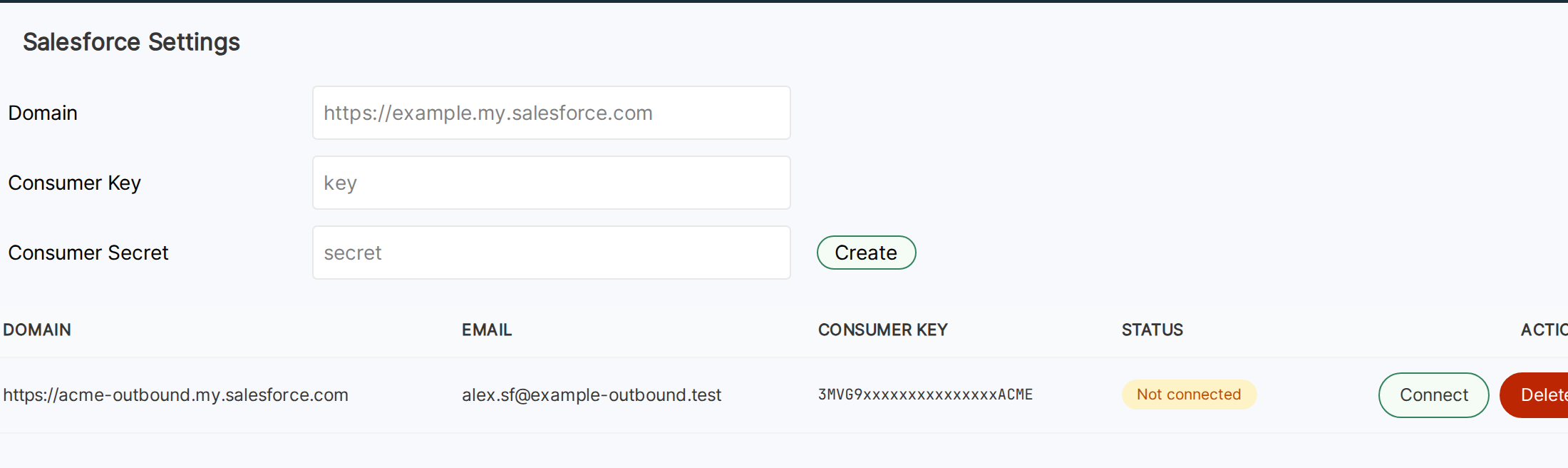
If Status stays Not connected or you see Salesforce connection failed, retry Connect or Reconnect with the matching OutboundSync and Salesforce email in the same browser session.
When Status is Connected, the same action reads Reconnect:
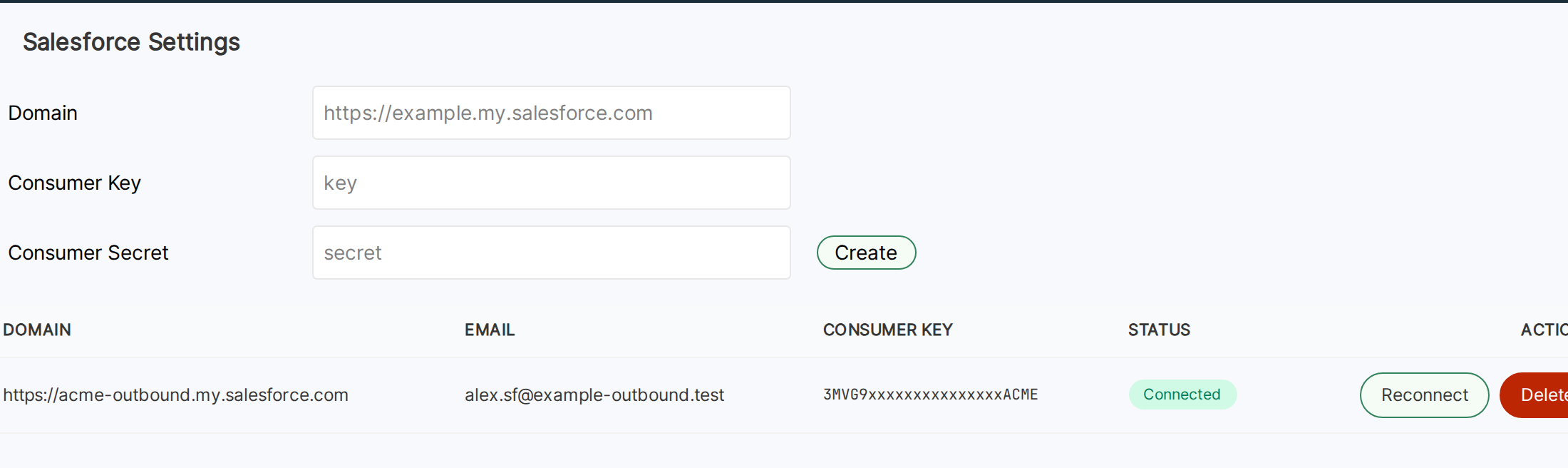
You do not need to re-enter your Consumer Key, Consumer Secret, or domain for a normal reconnect. Those credentials stay on the existing profile.
For first-time setup, or if you need to find your Connected App credentials, see Connect app in OutboundSync in the Salesforce setup guide.
Do not delete or create a duplicate
Section titled “Do not delete or create a duplicate”- Do not Delete a profile that still has sources or block lists. OutboundSync blocks that delete and directs you to reconnect instead. Delete is only for unused profiles with no webhooks and no block lists.
- Do not Create another profile for the same Salesforce domain and consumer key while that profile still exists. OutboundSync rejects the duplicate and directs you to reconnect on the existing row.
SSO and integration users
Section titled “SSO and integration users”Reconnecting Salesforce requires the same OAuth pairing as initial setup:
- The email you use to log into OutboundSync must match the Salesforce user who completes Connect or Reconnect.
- You must be logged into Salesforce as that user in the same browser session when you click Connect or Reconnect.
If your org uses SSO (for example Okta), an integration user needs a working SSO login path. A password reset in Salesforce alone may not help when Okta manages credentials.
Symptoms of a user mismatch: OAuth loops, permission errors, or a connection that appears linked to the wrong Salesforce identity. If SSO blocks your integration user, reconnect with a human admin account. Created By on synced records will reflect whoever completes Connect or Reconnect — see Identifying OutboundSync activity in Salesforce.
After reconnecting
Section titled “After reconnecting”In-place reconnect updates the existing Salesforce connection. Your sources stay linked — you do not need to create new sources or change Sales Engagement Platform URLs.
If the profile shows Connected but token errors continue after reconnecting, contact support. Profiles left behind by an earlier delete-and-create attempt may require a manual repair.
- Confirm sync — send a test payload or trigger a live event and verify activity in Salesforce.
- Replay held events — after an authorization error, OutboundSync pauses CRM sync for the connection, and reconnecting resumes it for new events. Events logged during the outage (status Error, Error Response
sync_circuit_open) aren’t replayed automatically. Retry them with the API or contact service@outboundsync.com — see How to reprocess errored webhook logs.