Operations and concepts
Block list maintenance guide
Maintain and update OutboundSync block lists — monitor which contacts are blocked, adjust list criteria, troubleshoot filtering issues, and keep your CRM data clean.
When to use this guide: Use this guide when tuning day-to-day sync behavior and data hygiene.
Once you’ve created a block list, use this article to understand how it’s working and make changes. If you haven’t made one yet, check out the guide for whichever CRM you’re using.

How sync behaves (additive only)
Section titled “How sync behaves (additive only)”Block list sync from your CRM into Smartlead, Instantly, EmailBison, Lemlist, or HeyReach is additive:
- When a contact or company joins your HubSpot list or Salesforce report, OutboundSync pushes that address or domain to the sales engagement platform (SEP) block list.
- When a contact or company leaves the CRM source list, OutboundSync does not remove them from the SEP.
- Deleting the block list in OutboundSync stops the sync and clears OutboundSync’s copy. It does not clear entries already written in the SEP.
To refresh a time-based or changed exclusion set so the SEP matches the CRM again, use Removing email addresses or domains from the blocklist.
Blocklist status
Section titled “Blocklist status”You can monitor the progress of your blocklists sync by viewing the count of items that have been synced (Items Were Synced), as well as the count that have not been synced from the list (Items Are Not Synced).
OutboundSync keeps a log of the contacts stored, which can be viewed by navigating to History > Blocklists.
There you can search for specific blocklists or email addresses to view their status, sync date, and any associated errors that may have occurred.
If a teammate cannot see a block list you expect in the OutboundSync Block lists tab, check whether it was created under a different user profile. Non-Admin / non-Manager roles only see lists for their linked profiles; Admins and Managers see all. See Updating block and exclusion lists (HubSpot) or Updating block and exclusion lists (Salesforce).
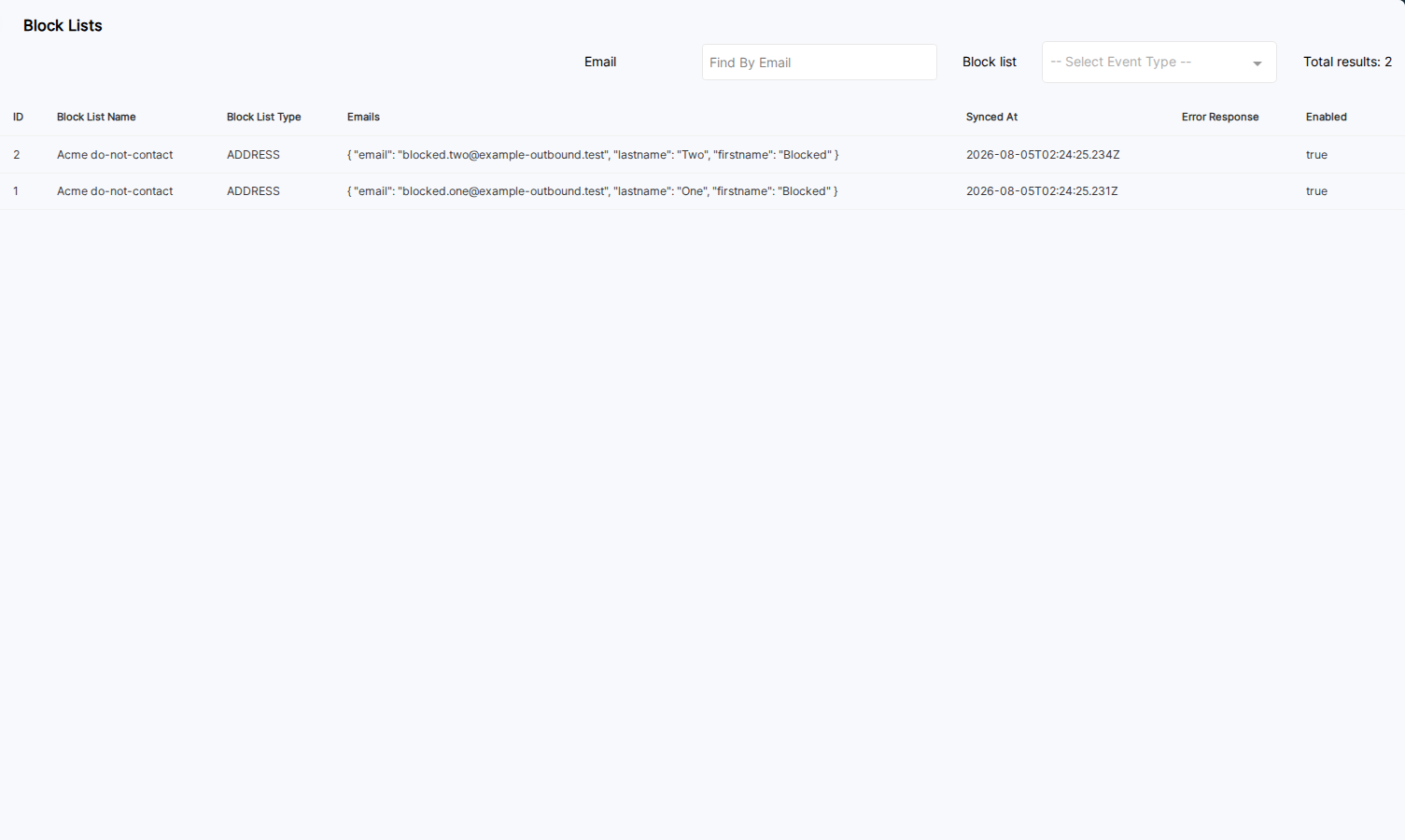
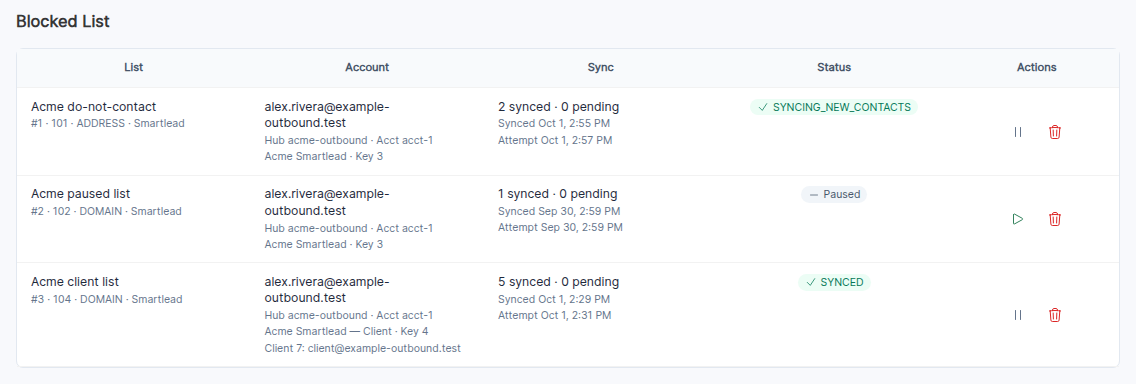
Here you can view the details of those blocklists, including:
- The List Name it is pulling from
- The API Key it is sending the blocklist to
- The Smartlead Client if one was selected
- The Type of blocklist (Address or Domain)
Smartlead account vs client API keys
Section titled “Smartlead account vs client API keys”Smartlead supports two scopes for blocklist sync:
- Account-level API key — pushes exclusions to every campaign in the Smartlead account.
- Client-level API key — pushes exclusions only to campaigns under that Smartlead client. Use this when an agency runs separate clients in one Smartlead account and you want each CRM block list to apply only to its matching client’s campaigns.
Choose the API key scope when you create the blocklist. See Connect your Smartlead API key for how to add either type.
Blocklist statuses
Section titled “Blocklist statuses”Below is a list of different statuses that occur when using the Blocklist feature:
CREATED
The blocklist has been created. If the user is approved for the blocklist, the status changes to FETCHING.
FETCHING
Fetching all contacts or companies for the blocklist from your CRM to OutboundSync’s database. When this is done, the status changes to SYNCING.
SYNCING
Sending emails or domains after FETCHING to your Sales Engagement Platform. When all contacts or companies are sent the status changes to SYNCING NEW CONTACTS.
SYNCING NEW CONTACTS
Fetching only new contacts or companies from your CRM since the last fetch and sending them to your Sales Engagement Platform. On HubSpot, that means list memberships added since the last pull. On Salesforce, later pulls apply an API filter on the report’s Created Date (CREATED_DATE) — the underlying record’s CreatedDate — not a custom exclusion-date field; see Updating block and exclusion lists (Salesforce). This status does not mean two-way membership sync — addresses or domains that leave the CRM list stay on the SEP block list until you purge and re-run (see How sync behaves (additive only)).
PAUSED
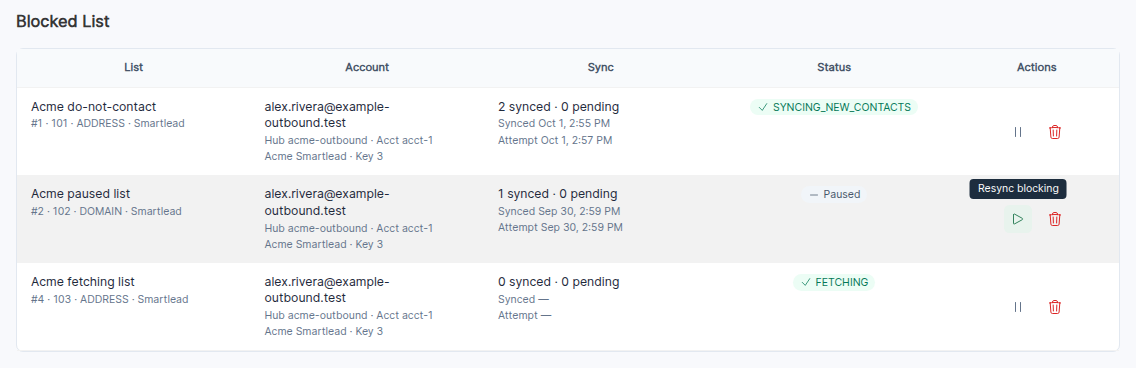
The user has temporarily paused the synchronization. Click Resync blocking to restart; it reloads the full CRM list.
PAUSED PENDING UPGRADE
Admin has paused the synchronization (user is not approved for blocklists)
Here’s what it looks like in the application:
Errors
Section titled “Errors”If any issues occur during blocklist sync, an error log will be displayed in the UI. Common errors include an Invalid Access Token to your CRM or an Invalid API Key. OutboundSync also automatically handles certain service-related errors from Smartlead, described below.
1. Gateway Time-out
Section titled “1. Gateway Time-out”Error:
Gateway Time-out
Cause:
This error occurs when Smartlead’s service is temporarily unavailable when OutboundSync attempts to process the request.
How it’s handled:
- OutboundSync automatically retries sending the affected emails or domains using scheduled cron jobs.
- If the retry succeeds, the error is automatically cleared from the blocklist.
Action required:
None. The system will handle retries automatically. If the issue continues, check Smartlead’s service status or logs.
2. Invalid JSON Response
Section titled “2. Invalid JSON Response”Error:
Unexpected token '<', "<!DOCTYPE "... is not valid JSON
Cause:
This happens when Smartlead returns an HTML response (such as an error page) instead of valid JSON. This usually indicates a service hiccup or misconfiguration on their end.
How it’s handled:
- OutboundSync identifies these as invalid responses and flags the corresponding emails or domains with a timestamped error.
- The system repeatedly attempts to resend them on subsequent sync runs.
- The timestamp ensures the system doesn’t retry the same data in a loop without progress.
Action required:
None. OutboundSync will continue retrying until the data is successfully processed. If this error is persistent for specific entries, reviewing Smartlead’s response logs may help isolate the cause.
You may also receive an error if your account does not have access to the blocklists feature in OutboundSync. If this is the case and you would like to upgrade, please contact sales@outboundsync.com .
Pause and resync blocking
Section titled “Pause and resync blocking”Use the Pause blocking row action to stop a blocklist at any time. OutboundSync stops fetching from your CRM and stops pushing to your Sales Engagement Platform. Nothing already on the SEP blocklist is removed.
To turn it back on, use Resync blocking. Resync is a full reload of the CRM list, not a continue-from-where-it-stopped: OutboundSync clears its local copy, refetches every contact or company in the list, and pushes them to the SEP. The status moves to FETCHING, then SYNCING. Because the SEP push is additive, resync adds current members but does not remove addresses or domains that left the CRM list.
To pause or resync on a schedule, use the API: POST /api/v1/blocklists/:id/pause and POST /api/v1/blocklists/:id/resync.
Delete blocklist
Section titled “Delete blocklist”To delete the blocklist, click the Delete button. This action stops the blocklist from running and deletes the blocklist in OutboundSync. It does not remove contacts from the blocklist in your Sales Engagement Platform.
Removing email addresses or domains from the blocklist
Section titled “Removing email addresses or domains from the blocklist”If you change your filter criteria, you can remove email addresses or domains from the blocklist with the following steps:
- Pausing campaigns in your Sales Engagement Platform.
- Delete the blocklist in OutboundSync and your Sales Engagement Platform.
- Update the source list in HubSpot or Salesforce.
- Re-run the blocklist in OutboundSync.
- Resume campaigns in your Sales Engagement Platform.
Remember to give OutboundSync time to re-run your re-added blocklist. You can monitor your progress in the blocklist section of the application.
If you only changed the CRM list criteria, you don’t need to delete the OutboundSync blocklist. In step 2, clear only the SEP blocklist; in step 4, click Resync blocking to reload from current CRM membership.
Time-based and volume exclusions
Section titled “Time-based and volume exclusions”Block lists are a strong fit for durable exclusions — customers, Do Not Contact, competitors, open deals. They are a weaker fit for rules that change with time, such as “emailed in the last two months” or “too many touches recently.”
Because sync is additive only, someone who joins a time-based CRM list gets pushed to the SEP and stays blocked there even after they age out of the CRM criteria. Using the block list as a rolling timer means you must periodically purge and reload (below) — or accept that the SEP will over-suppress until you do.
Prefer durable CRM list criteria for day-to-day block lists. Handle recency and touch caps closer to enrollment when you can.
Check prior outreach before you enroll
Section titled “Check prior outreach before you enroll”The OutboundSync API now lets you ask whether a contact was recently outreached — by email and/or social profile URL — and use that answer to skip or delay enrollment, instead of treating the SEP block list as a countdown clock. Call GET /api/v1/contacts/outreach once per contact from your enrollment workflow — Check prior outreach for a contact — then keep only contacts where found is false, or summary.daysSinceLastTouch is null, or it is ≥ your cadence (e.g. 90 days).
Company/domain rollup (GET /api/v1/accounts/outreach) and CRM blocklist evaluation (blocklists.evaluated is always false today) are still reserved — see the endpoint notes.
If you still put time-sensitive people on a block list, pair the list with a regular refresh cadence so the SEP does not keep people who should be eligible again.
Refreshing exclusions on a cadence
Section titled “Refreshing exclusions on a cadence”When block list membership can change over time (or you change CRM filters), pick a consistent interval to reload the SEP from the current CRM list. Quarterly is a common default; some teams use every six months.
- Pause campaigns in the SEP.
- Delete the block list in OutboundSync and clear the matching block list in the SEP.
- Confirm the CRM source list matches the people you still want suppressed.
- Re-create the OutboundSync block list, or click Resync blocking on the existing one, so the SEP is reloaded from current CRM membership.
- Resume campaigns.
Full step detail: Removing email addresses or domains from the blocklist.