Fixing the Salesforce task Type field error
When to use this guide: Use this guide when expected sync behavior is missing, delayed, or incorrect.
The error and why this happens
Section titled “The error and why this happens”When syncing activities from OutboundSync to Salesforce, you may see the following error:
{"0": [{ "message": "No such column 'Type' on sobjectof type Task", "errorCode": "INVALID_FIELD"}]}This happens when the Salesforce user does not have access to the Task → Type field. The Type field is a standard Salesforce Task field, and OutboundSync references it whenever activities are created or updated. If the integration user’s profile does not have visibility to this field, Salesforce blocks the sync request and returns the INVALID_FIELD error.
At minimum, you must make the Type field visible for the System Administrator profile. You may also enable it for all profiles if you want broader access.
How to fix It
Section titled “How to fix It”Method 1: Update field-level security on the task Type field
Section titled “Method 1: Update field-level security on the task Type field”- In Salesforce, go to Setup.
- Navigate to Object Manager → Task → Fields & Relationships.
- Select the Type field.
- Click Set Field-Level Security.
- Check Visible for System Administrator (you may also select all other profiles).
- Save your changes.
If you see “Field-Level Security for Permission Sets” instead of profile checkboxes:
- Go to Setup → User Management Settings.
- Find “Field-Level Security for Permission Sets during Field Creation”.
- Set it to Disabled.
- Return to the Task Type field and you will now see profile-based visibility options.
Method 2: Use profile object settings (enhanced profile UI)
Section titled “Method 2: Use profile object settings (enhanced profile UI)”If your org uses the Enhanced Profile User Interface, you can adjust visibility this way:
- In Salesforce, go to Setup → Profiles.
- Open the System Administrator profile
- Click Object Settings.
- Select Tasks.
- Find the Type field.
- Edit permissions and check both Read Access and Edit Access.
- Save your changes.
- (Optional) Repeat for other profiles if you want all users to see the field.
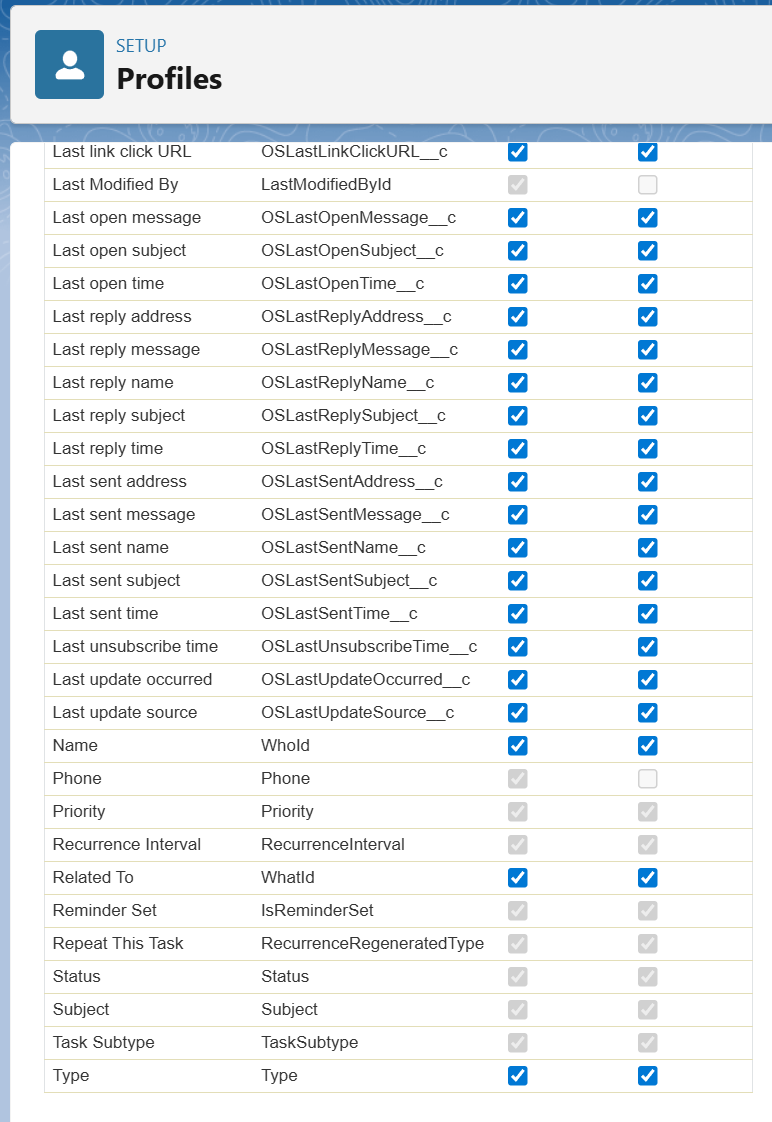
The Enhanced Profile User Interface is a Salesforce setting that can be turned on or off. If you don’t see the “Object Settings” option when viewing a profile, go to Setup → User Management Settings and enable Enhanced Profile User Interface. Once enabled, profiles will display in the enhanced UI where object settings are easier to manage.
Verifying the fix
Section titled “Verifying the fix”After updating field visibility, retry sending a test payload from OutboundSync. The test payload should successfully send without returning the INVALID_FIELD error. The synced task activity should now appear in Salesforce under the Task object, confirming that OutboundSync can create activities successfully.