Last updated:
How I Built an OutboundSync API Monitor in Make
I’d heard of APIs before but had never actually used one, and honestly, I didn’t fully understand how they worked. I assumed anything involving an API would be hard, and squarely an engineering job.
Then it clicked: an API call is just a question you ask a system over the web, and the answer it sends back. That’s it. To prove it to myself, I built something small but genuinely useful: an automatic monitor for OutboundSync’s public API.
OutboundSync has a public REST API, and the friendliest place to start is its health check. There’s a liveness endpoint anyone can call with no API key and no setup: https://app.outboundsync.com/health/live. Ask it whether the platform is up, and it answers. I wired that one call into a Make scenario that checks every hour, keeps a running log, and pings our Slack when a check comes back unhealthy. Here’s how each piece works.
Just want the answer, not a build? OutboundSync already publishes a live status page at outboundsyncstatus.com with current status and incident history. This tutorial is about wiring that same up/down signal into a tool you already watch, like Slack.
The overall workflow
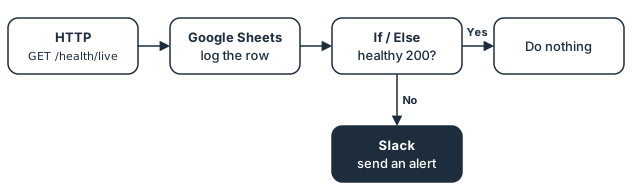
The whole thing is four modules wired in a line: an HTTP request, a Google Sheets row, an If/Else check, and a Slack message. The main path runs HTTP → Google Sheets → If/Else. From there it branches: if we didn’t get a healthy 200 back, it sends a Slack alert; if everything’s fine, it does nothing. The scenario runs automatically, once every hour.
Step 1: HTTP — make the request
The first module sends a GET request to https://app.outboundsync.com/health/live. GET means “read”: it asks for information without changing anything, so it’s safe to run on a schedule.
When the platform is up, the endpoint returns a 200 status code and a short reply:
{ "schema_version": 2, "status": "operational"}No key, no headers, nothing to configure, just a URL. That’s what makes it a perfect first API call.
One setting matters here: tell Make’s HTTP module not to stop on an error. Liveness only fails to return a 200 when the platform is unreachable, so a real outage often shows up as a failed or timed-out request rather than a tidy error code. Letting that result flow through, instead of halting the scenario, is what lets the next steps catch it.
Step 2: Google Sheets — log the response
Every run adds a new row to a Google Sheet, so we keep the full history of every check, not just the latest result. That history is what makes it easy to see exactly when something went down and when it came back. Each row captures:
- Checked At — when the automation ran.
- Status Code —
200means the platform answered as healthy. - Status — the
statusvalue from the response (operationalon a good day).
That’s the whole log: three columns, one row an hour.
Step 3: If/Else — did we get a healthy response?
This is the decision point, and it asks one thing: did we get a healthy 200 back? If yes, the scenario stops. No news is good news, and no noise on a normal day. If the status code is anything other than 200, or the request failed outright, it takes the path to Slack.
Step 4: Slack — send an alert when needed
When the check doesn’t come back healthy, this module posts to our Slack channel so someone can look into it right away. The alert includes the status code (or the failure), the endpoint that was checked, and the time. That’s enough to start digging immediately instead of finding out hours later.
What I learned
- An API call is just a question and an answer. You don’t need a key or a custom app to start. One public URL and a
GETis enough. - Breaking a big idea into small steps makes it approachable instead of intimidating.
- Logging every check builds a timeline you can look back on when something breaks.
- The logic is the hard part, not the code. Once the flow made sense, building it was quick.
What’s next
This liveness check answers one question: is OutboundSync up? That’s the foundation. From here, the same four-module pattern scales up in two directions:
- See which part is failing. OutboundSync also exposes a readiness endpoint,
https://app.outboundsync.com/health/ready, that reports each part of the pipeline and returns a503when something’s off, so an alert can name which component is unhappy. That’s a natural follow-up build. - Watch your own sync. With a free, read-only API key,
/api/v1/account/statustells you whether your outbound activity is actually reaching your CRM right now, and hands you the exact fix if it isn’t. That’s where a monitor like this starts protecting your own data.
Even this small workflow already earns its keep: every hour it confirms the public API is answering, and the first check that comes back unhealthy turns into a Slack alert.

Marketing Intern, OutboundSync
Jason Ma is a Marketing Intern at OutboundSync and a Business Administration student at Pepperdine University. He enjoys creating content, exploring AI tools, and helping B2B SaaS companies tell compelling customer and partner stories.
Similar posts
Running outbound with Supabase monitoring your TAM
Companies keep customers in the CRM and the rest of the TAM in a database. How OutboundSync forwarding, API, webhooks, and MCP sit next to Supabase.
Harris Kenny
Build vs buy: getting outbound data into your CRM
Should you build your outbound-to-CRM sync with Zapier, Make, or n8n, or buy it? Use OutboundSync's three calculators to run the build-vs-buy math.
Harris Kenny
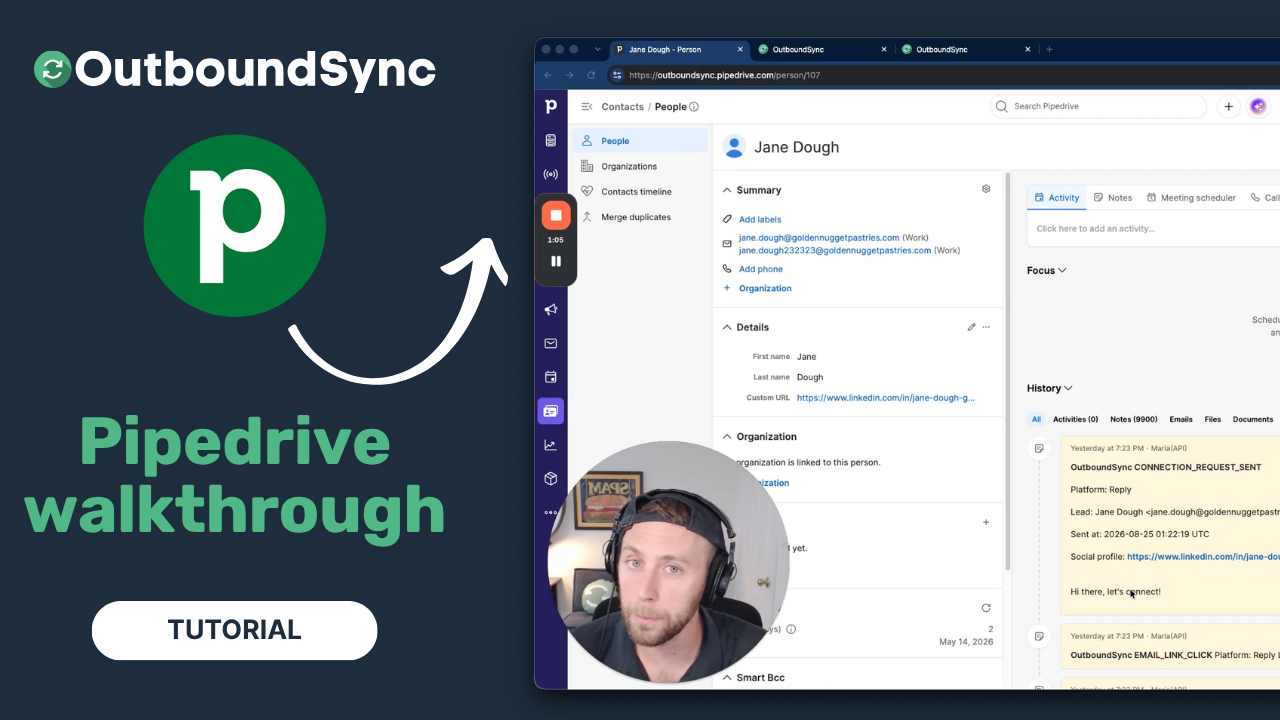
Pipedrive integration walkthrough
Watch a full walkthrough of the OutboundSync Pipedrive integration — connect via the Marketplace, configure your sync, and log outbound activity as Notes.
Harris Kenny